
Choosing a restaurant POS in Jaffna starts with a simple question: can your team follow one guest’s order from the table to the kitchen, through payment and into the day’s reports?
A billing screen is only one part of that journey. During a busy service, waiters add drinks to an existing table, the kitchen receives preparation notes, a takeaway order needs packing, and a group asks to pay separately. Your software should help the team understand what happens next.
This guide explains what to check when comparing restaurant billing software in Jaffna and across Sri Lanka. It uses the Distribook Restaurant POS workflow and branded product screenshots to make the questions concrete. The figures shown in screenshots are examples, not a customer’s results.
What is a restaurant POS system?
A restaurant point-of-sale system connects menu items, table and takeaway orders, kitchen instructions, bills and payment records. Depending on the setup, it can also connect waiter ordering, ingredient stock, staff access and management reports.
The important difference from a basic billing tool is continuity. A guest can request another dish without the team losing the table’s existing order. The cashier can see the bill being settled, while management reviews the recorded business day.
Distribook Restaurant brings together the counter POS, waiter app, owner/admin app and web administration. Each view supports a different responsibility, with actions determined by the person’s access and the restaurant’s configuration.
Why the service workflow matters in Jaffna
A café serving drinks and short meals may need a different setup from a restaurant with several kitchen stations. A takeaway counter has different handoffs from a dining room where guests add dishes throughout the meal.
Start with your actual service pattern: tables, peak periods, counters, kitchen stations and the people responsible for each step. For a team in Jaffna, language is another practical consideration. Ask to see the preferred Tamil, Sinhala or English interface during the demonstration, rather than deciding from an English feature list alone.
Local support discussions should be equally specific. Explain where the restaurant operates, which equipment is already installed and how staff will learn the system. Agree installation, training and support arrangements in the quotation. The same approach applies to restaurants elsewhere in Sri Lanka or abroad; location alone does not establish what a particular package includes.
1. Test table orders and takeaway together
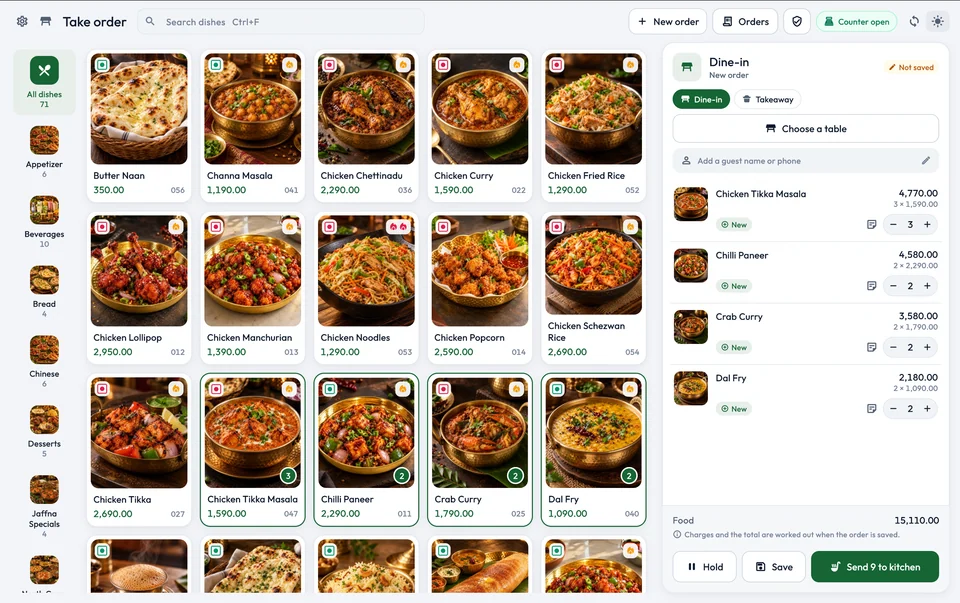
Ask the demonstrator to open a dine-in table, add several dishes and save the order. Then request one more dish for that same table. Staff should be able to recognise the existing order and understand the updated quantities and total.
Next, create a takeaway order. Check how it is distinguished from dine-in service and whether the relevant prices and charges appear as configured. A clear order type helps the cashier, kitchen and person handing over the food work from the same context.
In Distribook, product photos, categories and search help staff find dishes. Check portion choices, add-ons or included options that matter to your menu, and review any price changes before confirming. See the restaurant order guide for the working steps.
2. Follow kitchen tickets and dish notes
KOT means kitchen order ticket. It communicates the food or drinks the kitchen needs to prepare. Preparing a dish, printing a ticket and serving the guest are related actions with different outcomes.
Use a realistic demonstration: order two main dishes, add a preparation note to one, and later request a dessert. Ask the team to show which changes are sent to the kitchen and how they remain associated with the correct order.
A note such as “less oil” should stay beside the relevant dish. A preparation preference also needs to be distinguished from packing an item to take away. Where a guest has an allergy, staff must confirm it through the restaurant’s kitchen procedure; a note alone is not an assurance that a meal is suitable.
Distribook’s dish-note guide and kitchen-ticket guide explain these handoffs. During setup, test the intended kitchen stations and printers with your actual equipment.
3. Compare the waiter and owner views
A waiter needs the next service action. An owner needs the bigger business picture. Giving both people the same crowded screen rarely explains their different responsibilities.
The Distribook waiter app can bring together the floor overview, table orders, menu and dishes ready to serve. Ask a waiter to take an order during the demonstration and then find it at the counter. Check how the staff member recognises the correct table and follows preparation progress.
The owner/admin app provides permitted views of sales, orders, stock, staff and approvals. Ask to see the selected date, branch and filters before comparing totals. An owner monitoring several locations needs to know which restaurant a figure describes.
Access is part of the decision. A waiter being able to take an order does not automatically mean that account should collect money or approve a large discount. The counter, waiter and owner guide explains the connected roles.
4. Review split bills and payment records
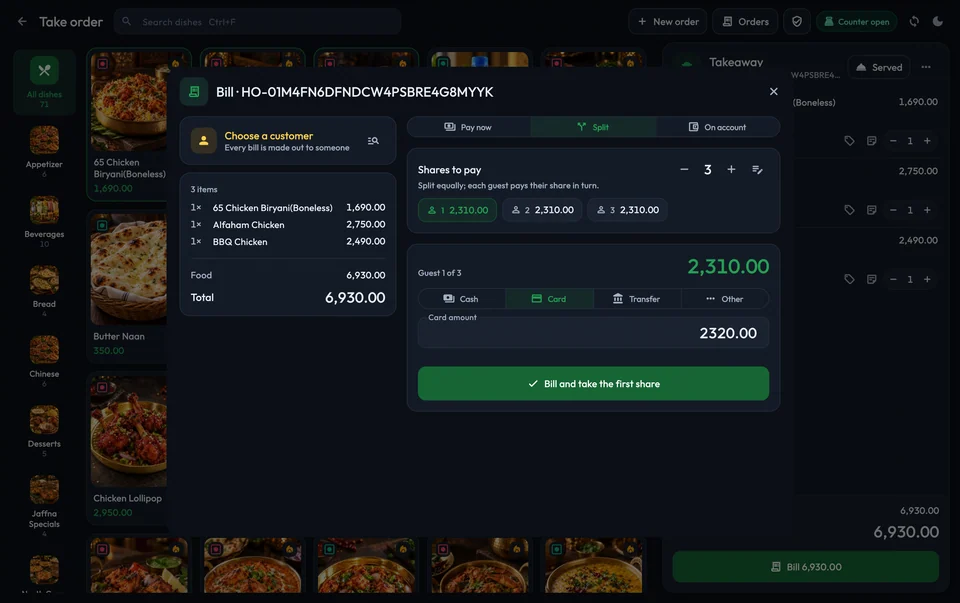
Groups often ask to share a bill. Start by checking what “split” means on the screen: dividing a restaurant bill between guests is different from recording one payment through several methods.
Ask to see a guest share, the payment recorded for it and the remaining balance. After the first guest pays, the cashier should still understand what the table owes. Also review the food total, permitted discounts, service charge and configured taxes before confirming.
For cash, card, transfer or other enabled methods, the POS record should reflect what the restaurant actually received. Recording “Card” in software does not itself operate a payment terminal. Discuss any required terminal or gateway integration separately.
Distribook’s restaurant payment guide covers guest shares, methods and checking the saved result. Include a receipt or bill-sharing demonstration so the cashier understands how to provide a copy after payment.
5. Connect the menu with stock and costs
Restaurant stock management begins with distinguishing what you sell from what you buy and prepare. A bottled drink, a dish made to order and a prepared batch do not have identical stock workflows.
Ask how menu products, ingredients, recipes and prepared items fit your setup. Then review the enabled tools for receiving goods, store transfers, stock counts and wastage. The aim is to understand where a stock figure comes from and which staff actions keep it current.
Menu maintenance matters too. Your team may need different configured prices for dine-in, takeaway and delivery, or different kitchen stations for food and beverages. Check who can maintain those details and how staff identify the intended dish at the counter.
Distribook’s web administration and mobile tools support restaurant menu and stock work according to access and configuration. Explore the POS manual and admin-app guides when planning the responsibilities behind the daily service.
6. Check approvals and the end-of-day review
A useful restaurant report should help explain the day. Review sales, payment methods, expenses and open or unpaid orders, then ask how the cashier counts and closes the counter.
Also demonstrate the corrections your business needs: a cancellation, a permitted discount or an approval request. Staff should understand who can perform the action and how to check its resulting status. A request waiting for approval is not the same as a completed change.
In Distribook, the owner and manager views can include the day’s orders, daily history, reports and permitted approvals. Staff guides describe the practical checks around these workflows. Make a clear closing routine part of training, including a handover for unresolved orders or payment questions.
How much does a restaurant POS cost in Sri Lanka?
Compare the complete restaurant setup, not just the monthly software amount. Hardware, counters, kitchen stations, applications and onboarding can change the scope of the quotation.
At the time of writing, Distribook’s published platform plans include:
- Admin + POS: LKR 3,000 per month. The published base plan covers POS and web administration, with inventory, sales, purchasing and business reporting.
- Admin + POS + Mobile App: LKR 3,500 per month. The published plan adds the admin mobile application for reviewing sales, stock and reports away from the counter.
These are platform plans, not a promise that every restaurant configuration or device is included. Check the current pricing page and request a written quotation confirming waiter access, counters, printers, kitchen equipment, training and any additional requirements.
If your restaurant is outside Sri Lanka, discuss country, currency, tax settings, receipt requirements and support arrangements before choosing a deployment.
A restaurant POS demo checklist
Bring a small sample of your menu and walk through one complete service:
- Confirm the workspace. Select the intended restaurant branch and the cashier’s counter context.
- Open a table. Add two or three dishes and check quantities and prices.
- Add a dish note. Make sure it stays with the item the kitchen will prepare.
- Send the kitchen changes. Follow the preparation status and add a later request to the same order.
- Try the waiter app. Find the table and identify the work ready to serve.
- Review the bill. Check discounts, service charge and configured taxes.
- Record a guest payment. Inspect the paid share and remaining balance, then produce a bill copy.
- Review the day. Find the saved order and payment in the permitted management views.
Let the cashier or waiter perform some of these steps. Their questions reveal training needs that a presentation alone may miss. Use the restaurant daily-workflow guide as a starting point; equivalents are available in Tamil and Sinhala.
Questions to settle before going live
Before installation, agree the menu data, opening stock, staff accounts, branches, devices and printer connections. Test a representative service with the people who will run it.
Discuss connectivity and recovery explicitly. Do not assume every device or restaurant operation behaves identically without an internet connection. Ask which workflows are supported in your intended setup and how staff check an uncertain save or payment before trying again.
Finally, confirm the support channel and onboarding arrangements. Keep the restaurant’s table or order reference when reporting an issue, so the team can investigate the right record.
Frequently asked questions
What should I look for in a restaurant POS in Jaffna?
Test table and takeaway orders, kitchen handoff, dish notes, payment records and daily reporting. Check your team’s preferred language, existing printers, waiter devices and agreed support arrangements. Choose according to the service workflow you can demonstrate.
Can Distribook connect the counter, waiters and owner?
Yes. Distribook Restaurant combines the counter POS, waiter app, owner/admin app and web administration. Each person uses the capabilities, branches and stores their account is allowed to access.
Does a kitchen order ticket mean the food is ready?
No. A KOT communicates kitchen work; it does not establish that the dish is prepared or served. Follow the preparation and service indicators separately from printing status.
Can restaurant guests pay separate shares?
Distribook’s restaurant payment workflow supports guest shares and configured payment methods. Review the share being paid and the remaining balance. Confirm the exact payment workflow and any external integration during your demonstration.
Is the cheapest monthly plan the complete setup cost?
Not necessarily. Confirm the required applications, counters, hardware, kitchen stations and training in a written quotation. Use the current published pricing as a starting point for that discussion.
See Distribook Restaurant in action
Distribook is a product of SiTechra (Pvt) Ltd, based in Jaffna. Explore the restaurant product page for the connected counter, kitchen, waiter and owner views, or read the restaurant feature overview for more detail.
To discuss your restaurant, message Distribook on WhatsApp or call +94 76 555 0967. Share your location, table count, kitchen stations, existing devices and preferred staff language so the demonstration can follow the way you work.