
POS / Restaurant orders
Restaurant bills, split shares and payments
Check a restaurant bill, split it between guests when available, record the actual payment method and recover safely from uncertain checkout.
Before taking money, open the intended restaurant order and review its latest saved state. Check the table or takeaway reference, dishes, quantities, permitted discounts, service charge and total. The amount shown in a screenshot is demonstration data; use the total quoted for the actual order.
A cashier needs the required permissions and an open counter for the billing workflow. Being able to view an order on a phone does not grant payment access or replace the cashier’s counter session.
Review the bill before payment
- Open the order’s billing action, such as Bill, Finalize & pay or Collect balance, as offered for its current state.
- Select the correct customer when requested. Do not attach a bill to an unrelated guest simply to pass a required field.
- Confirm the order type, final charges, any existing invoice and payments already recorded. An existing invoice can require collecting its balance rather than issuing another bill.
- If the order changed after you opened it, refresh and review the updated quote before confirming.
Split a bill between guests
When the restaurant bill offers Split and Shares to pay, choose the required number of shares and inspect the displayed amount for each guest. Select the intended share, choose how that guest actually pays and review the action before submitting it.
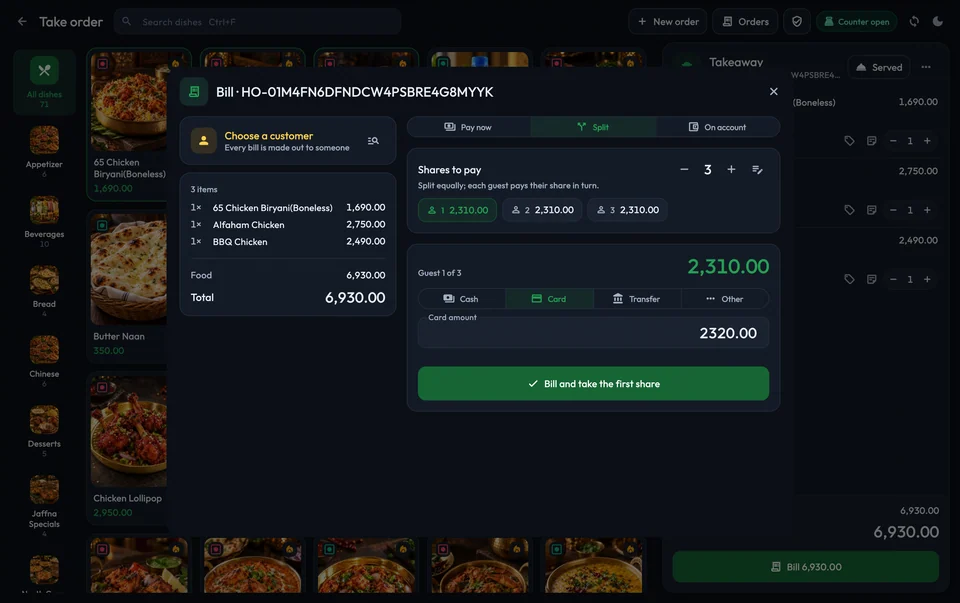
Wait for confirmation after taking a share, then inspect which shares are paid and what remains. Do not assume the whole table is settled because one guest has paid. If the shown amounts or rounding do not match what the guests agreed, resolve that before collecting money rather than editing figures just to continue.
A guest-share split is different from dividing one payment between methods. The general POS checkout can offer Single and Split payment lines. Follow the controls on the actual screen; do not assume every split button has the same meaning.
Record the real payment method
Use Cash, Card, Transfer or Other only for the method actually used and available to the restaurant. Enter the received amount and any required reference. Recording a card or transfer payment in the POS does not by itself prove an external terminal or bank transfer succeeded; confirm the real payment through the restaurant’s normal procedure.
On account leaves an amount owed by the selected customer, subject to the allowed credit workflow. Applying existing customer credit uses an existing balance; it is not new cash. Check the displayed remaining balance before considering the bill paid.
Confirm, print and recover
Submit the intended payment once and wait for the saved invoice/payment result. A receipt or Share bill action provides a copy of the bill; producing a copy is not another collection of money.
If the printer fails after a confirmed payment, inspect the saved bill and use the appropriate reprint or share action. If checkout times out, check the order, invoice, paid shares and remaining balance after reconnecting before trying again. Ask an authorised manager to resolve an uncertain result instead of issuing a duplicate bill or charging the guest twice.
See general payment guidance, receipts and Distribook Restaurant.