
POS / Restaurant orders
Restaurant POS: the daily workflow
Understand the restaurant POS workflow from opening the counter and taking table orders to kitchen handoff, payment and daily review.
A restaurant POS connects the order taken on the floor with the kitchen, the bill and the owner’s view of the day. In Distribook, the counter POS, waiter app and owner/admin app have different responsibilities. Each person uses the actions their account and restaurant settings allow.
This guide is a starting point for everyday service. For a product overview or to arrange a demonstration, visit Distribook Restaurant.
Before the first order
- Sign in to the correct business and confirm the active branch and stock location. Ask a manager if the expected location or restaurant section is unavailable.
- A cashier who will collect payments should open the counter and count the physical opening cash. A waiter being able to take orders does not mean a cashier counter is open.
- Check that the menu, applicable order types, prices, kitchen stations and printers have been configured by an authorised person.
- Agree who takes orders, who prepares food, who marks dishes ready or served, and who settles bills. Use separate staff accounts so actions can be attributed correctly.
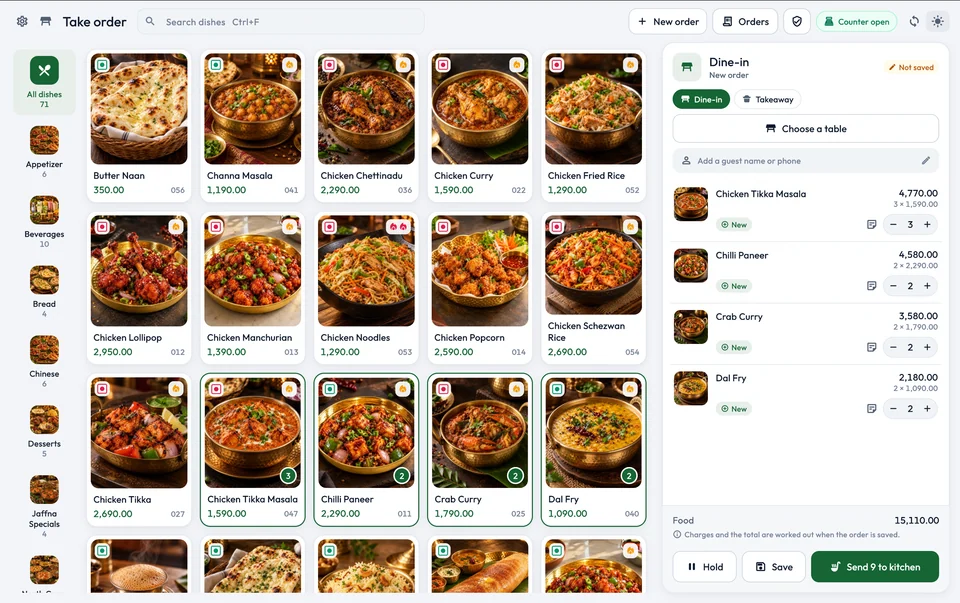
Follow an order through service
- Choose the existing table order, or start a new order of the correct type. Check the table and guest context before adding dishes.
- Add the requested dishes, quantities and preparation notes. Review the order total and any permitted adjustments.
- Save or send the order using the action offered on screen. Wait for confirmation before repeating the action or telling the kitchen it is saved.
- Follow preparation and service progress. A dish marked Ready still needs the staff handoff that your workflow requires; a printed ticket is not proof that food is ready.
- Open the bill, check the order and collect payment through an authorised checkout session. A saved order, an issued bill and a recorded payment are different events.
See table and takeaway orders, dish notes and kitchen tickets for the detailed steps.
Check the day before closing
Review open or unpaid orders and resolve them according to the restaurant’s policy. Compare recorded payments with the money actually received. The cashier should count and close the counter using its own closing workflow; viewing a daily report does not close it.
Managers can review orders, sales and reports through their available admin tools. Confirm the selected date and branch before comparing results. An empty view can reflect a filter or permission, rather than proving that no business took place.
Recover from an interruption
If a save, kitchen dispatch or payment times out, first inspect the existing order or bill after reconnecting. A connection error does not prove the operation failed. Avoid creating a replacement order, charging the guest again or sending duplicate kitchen work until the saved state is clear. If another staff member changed the order, refresh and review the latest details before proceeding. Keep the table reference and a clear description of the problem when asking a manager for help.